
How it works.
Agendair is a Google Sheet and an Apps Script. The script reads three tabs — Agenda, Participants, Settings — and sends two emails on a schedule you set once. Below: the architecture, the install, what you change and what runs itself.
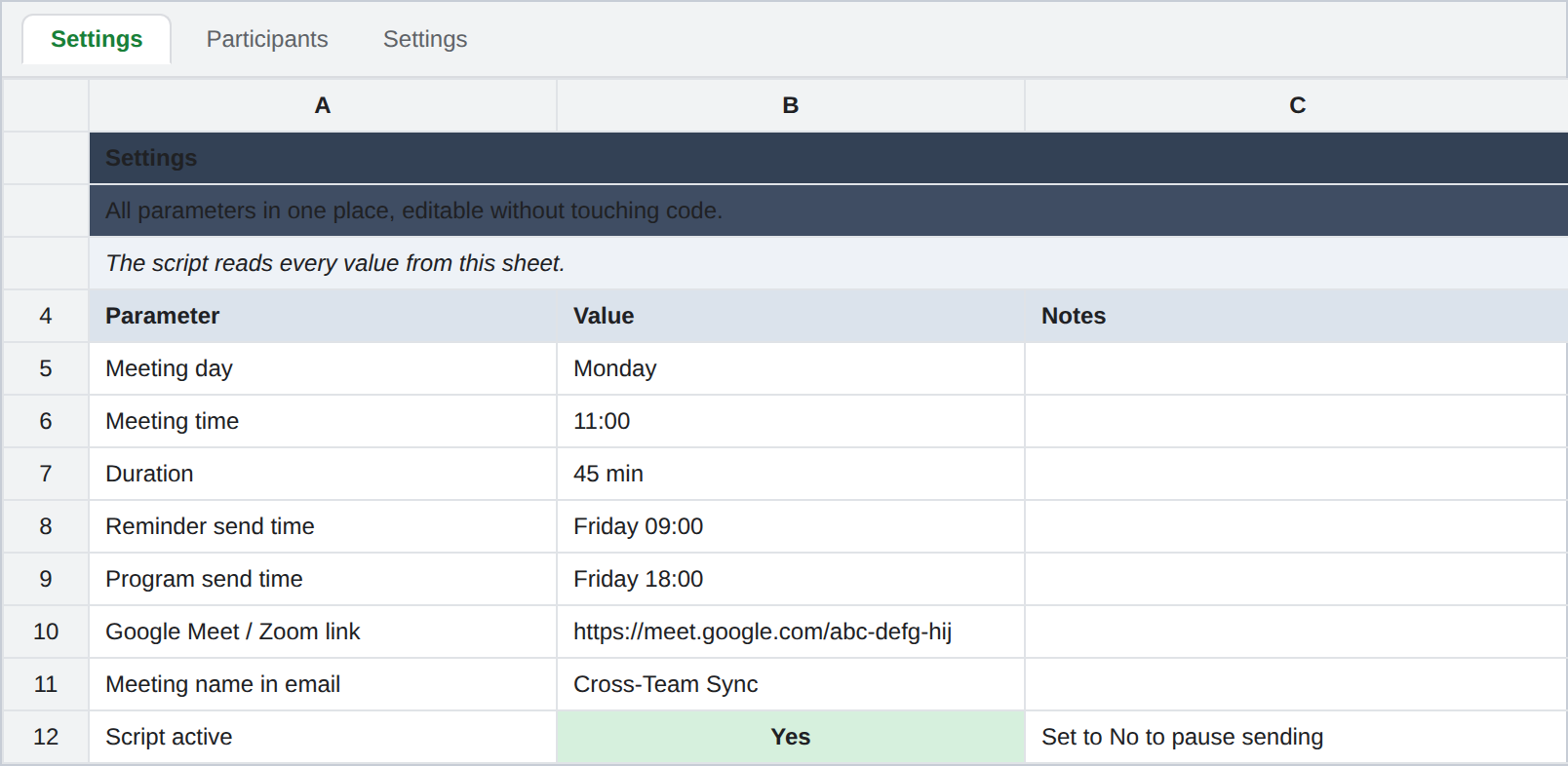
Three sheets in one Google Spreadsheet: Agenda (the working surface), Participants (the recipient list), and Settings (times, day, meeting link, kill-switch). The Apps Script reads Settings on every run, filters Participants where Notify = Yes, pulls Agenda rows with status New, assembles an HTML email in your brand colors, and sends it via Gmail. Two scheduled triggers handle the reminder and the program. There is no external server.
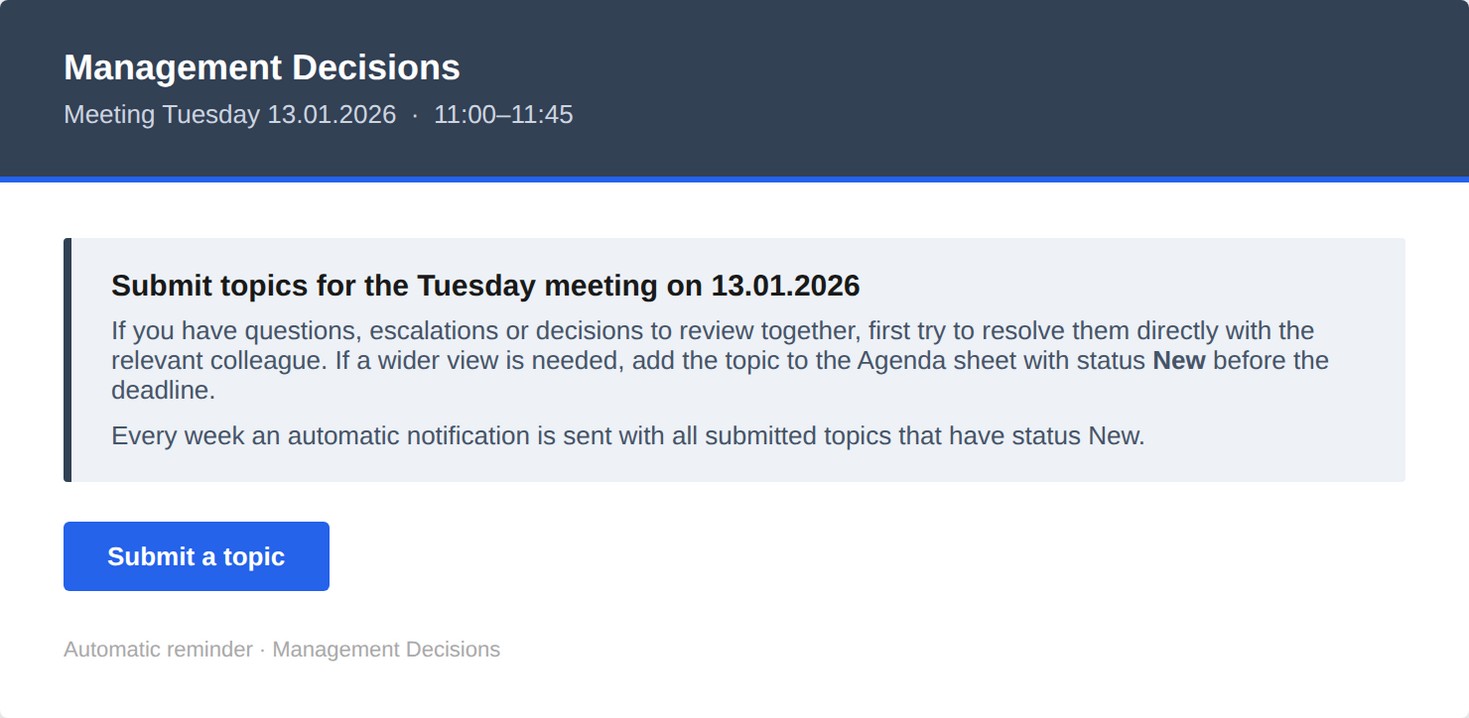
Sent automatically two working days ahead. A short message with one button: Submit a topic. Anyone on the recipient list can drop a row into the Agenda sheet — date, topic, description, required participants, owner — and mark it New. That's the entire input flow.
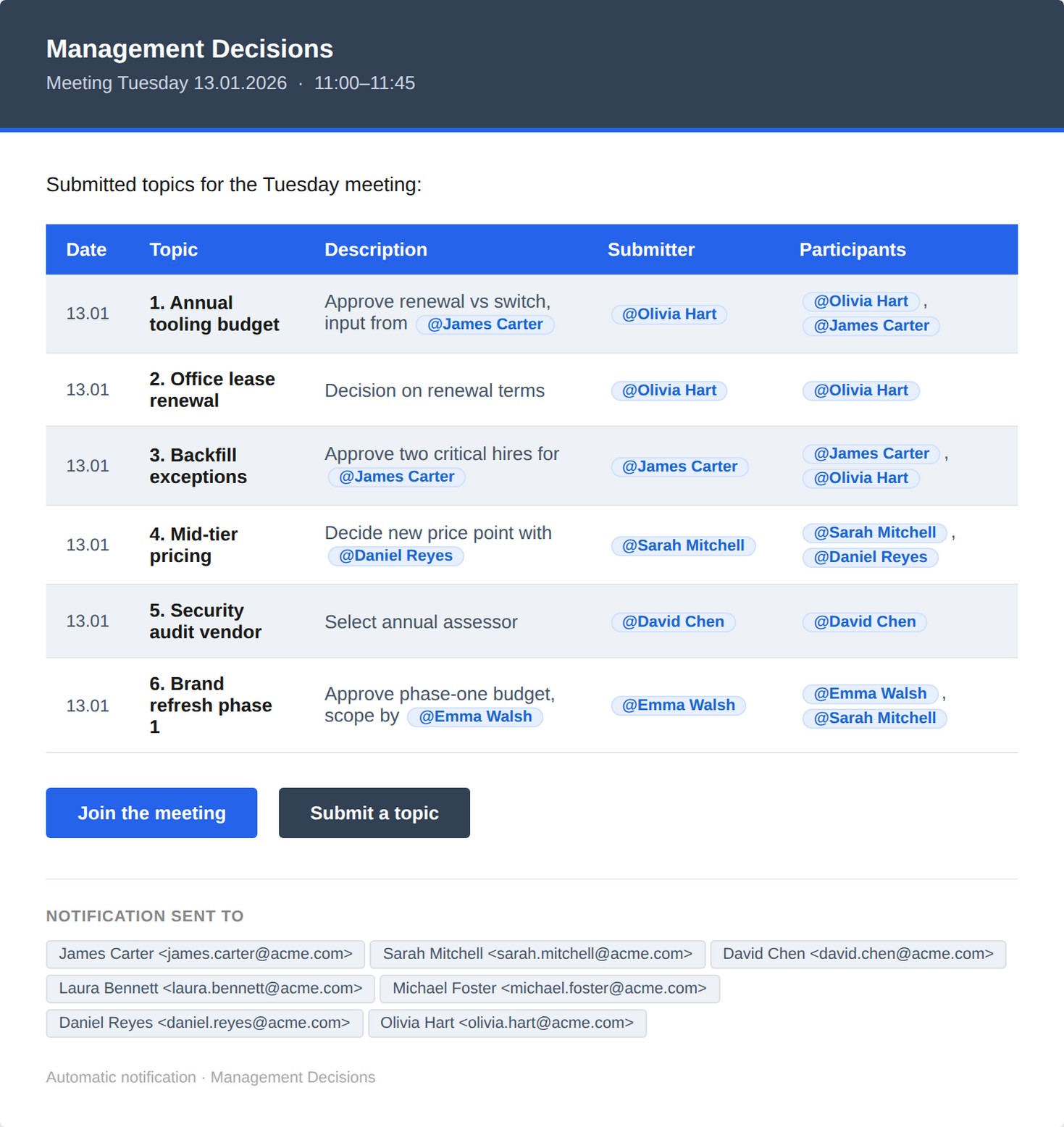
Every Agenda row with status New is rendered into a table: number, topic, description, submitter, participants. Below the table sit two buttons — Join the meeting (your Meet/Zoom link, pulled from Settings) and Submit a topic (still open for last-minute items). The recipient list is printed at the bottom so everyone can see who else got the same email.
- 01Duplicate the Google Sheet we send you (Agenda / Participants / Settings already structured).
- 02Fill the Participants sheet — name, email, Notify = Yes for anyone who should hear about it.
- 03Open Extensions → Apps Script. Paste the script. Set the one SHEET_URL line.
- 04Run createWeeklyTriggers() once. Approve permissions when Google prompts.
- 05Send the reminder manually as a test. Confirm it lands in your inbox.
- 06Done. It runs on its schedule from now on.
| You change | Runs automatically |
|---|---|
| Add a topic (any participant, any time) | Reminder & program emails on schedule |
| Change status to Closed / Postponed after the meeting | Recipient filtering (Notify = Yes only) |
| Flip Notify Yes/No for someone in Participants | Email rendering in your brand colors |
| Pause the script (Settings → Script active = No) | Hiding closed rows by default filter |
Do my participants need a paid Google account?+
No. They just need an email address. The script runs from your Google Workspace; recipients can be on any provider.
Will Gmail flag these as spam?+
Emails are sent from your own Google Workspace account, with your domain. As long as your domain has normal SPF/DKIM in place, they arrive in the inbox.
What happens during a holiday week?+
Open the Settings sheet and set 'Script active' to No. Reminders pause. Flip it back when you want it to resume.
Can I run two meetings — say a Monday sync and a Tuesday decisions meeting?+
Yes. Each meeting is an independent sheet + script. The two-kit price is built for exactly this.
What if no one submits a topic?+
The script sends a short 'no submitted topics' notice instead of an empty program — so the recipient list still knows the meeting is on.
Do I need to know Apps Script?+
No. The install guide is 10 minutes of copy-paste. You change one line (the sheet URL) and run one setup function. That's it.